How Does Dash Cam Loop Recording Work?
Dash cam loop recording explained: how clips overwrite oldest-first, what gets protected, how card size and bitrate set your history window.
Disclosure: Dashlore earns a commission on purchases made through some links on this page, at no added cost to you. Scores come from the spec rubric, never from commission rates. Details
On this page
Key takeaways
- Loop recording splits video into short clips and overwrites the oldest unprotected clip when the card fills, so the camera never stops.
- Clips locked by the G-sensor, a manual button or a parking event stay out of the loop until you delete them.
- Your history window in hours equals card size divided by combined bitrate; each extra channel shortens it.
- One-minute clips are the best default: faster Wi-Fi transfers, less lost to corruption, and smaller locked files when the G-sensor fires.
Loop recording splits dash cam video into short clips, usually one to three minutes each, and when the memory card fills it overwrites the oldest unprotected clip to make room. The camera never stops, and you never manage storage. Clips locked by an impact, a button press or a parking event are kept out of the rotation.
That’s the mechanism every dash cam in our rankings uses. What varies is how much history you keep before footage disappears, and that comes down to three numbers: card size, bitrate and channel count.
How the loop works, step by step
A dash cam doesn’t write one giant file. It writes a series of short, self-contained clips back to back with no gap between them. When the card fills, the camera deletes the single oldest unprotected clip and keeps going. VIOFO’s A229 Pro 2CH product page puts it plainly: the camera “overwrites the oldest videos with the latest ones.”
Think of the card as a conveyor belt. New clips go on one end; the oldest fall off the other. The length of that belt, measured in hours, is your recording history.
The clip structure exists for two reasons:
- Damage control. If power cuts mid-recording, only the clip being written is at risk. Every earlier clip is already closed and intact. This matters: LifeHackster documented a real collision where the front camera’s file for the impact moment was lost, but every other clip on the card survived. The clip structure limits corruption to a single file.
- Manageable files. Short clips are fast to find by timestamp and fast to pull off the camera. Multiple reviewers, including Daily Automotive and BlackboxMyCar, highlight that 5 GHz Wi-Fi cameras transfer individual clips in under a minute, roughly four times faster than 2.4 GHz models.
How clips get protected
Every modern dash cam can lock a clip so the loop skips it. Three triggers are standard.
G-sensor. An accelerometer detects a sudden jolt, like a collision or a hard pothole, and locks the current clip automatically. VIOFO says the A229 Pro “will automatically lock the footage in case of collision or crash.” Protected clips go to a separate event folder.
Manual save. A physical button, voice command or Bluetooth remote locks the clip being recorded. On the A229 Pro, the Bluetooth remote’s middle button “will instantly protect current video clip and image,” per VIOFO. Voice control does the same hands-free, and AutoFun confirmed it works reliably.
Parking events. In buffered parking mode, motion or an impact triggers a saved clip. The A229 Pro saves “the video for 15 seconds before and 30 seconds after the detected event,” per VIOFO. Our parking mode explainer covers how each mode uses space.
The catch: protected files aren’t infinite. If you never clear them, the event folder fills, the space left for normal loop recording shrinks and your history window gets shorter.
How long before footage is overwritten?
Here’s the formula:
Hours of history = card size (GB) / (combined bitrate in Mbps x 0.45)
The 0.45 converts megabits per second into gigabytes per hour (Mbps x 3,600 / 8 / 1,000). Combined bitrate means every channel added together because a dual-channel cam writes two streams to one card.
Bitrates vary by camera, resolution and quality setting. Check your camera’s settings menu for the actual figure. To show how the math plays out, here are worked examples using round illustrative bitrates:
| Setup (illustrative combined bitrate) | GB per hour | 256 GB card | 512 GB card | 1 TB card |
|---|---|---|---|---|
| 1440p front only (25 Mbps) | 11.3 | ~23 hrs | ~45 hrs | ~89 hrs |
| 4K front only (50 Mbps) | 22.5 | ~11 hrs | ~23 hrs | ~45 hrs |
| 4K front + 1440p rear (70 Mbps) | 31.5 | ~8 hrs | ~16 hrs | ~32 hrs |
| 4K + 1440p + 1080p cabin (85 Mbps) | 38.3 | ~7 hrs | ~13 hrs | ~26 hrs |
Two patterns stand out. Jumping from 1440p to 4K roughly halves your history on the same card when the bitrate doubles. And each added channel takes another bite.
Relate that to how you drive. A one-hour daily commuter gets a full work week from 8 hours of history. A rideshare driver pulling 10-hour shifts on a 3-channel cam may not hold yesterday’s shift on a 256 GB card.
How much does card size matter?
A lot, and it’s the cheapest lever you have. The cameras we track support cards from 128 GB up to 1 TB:
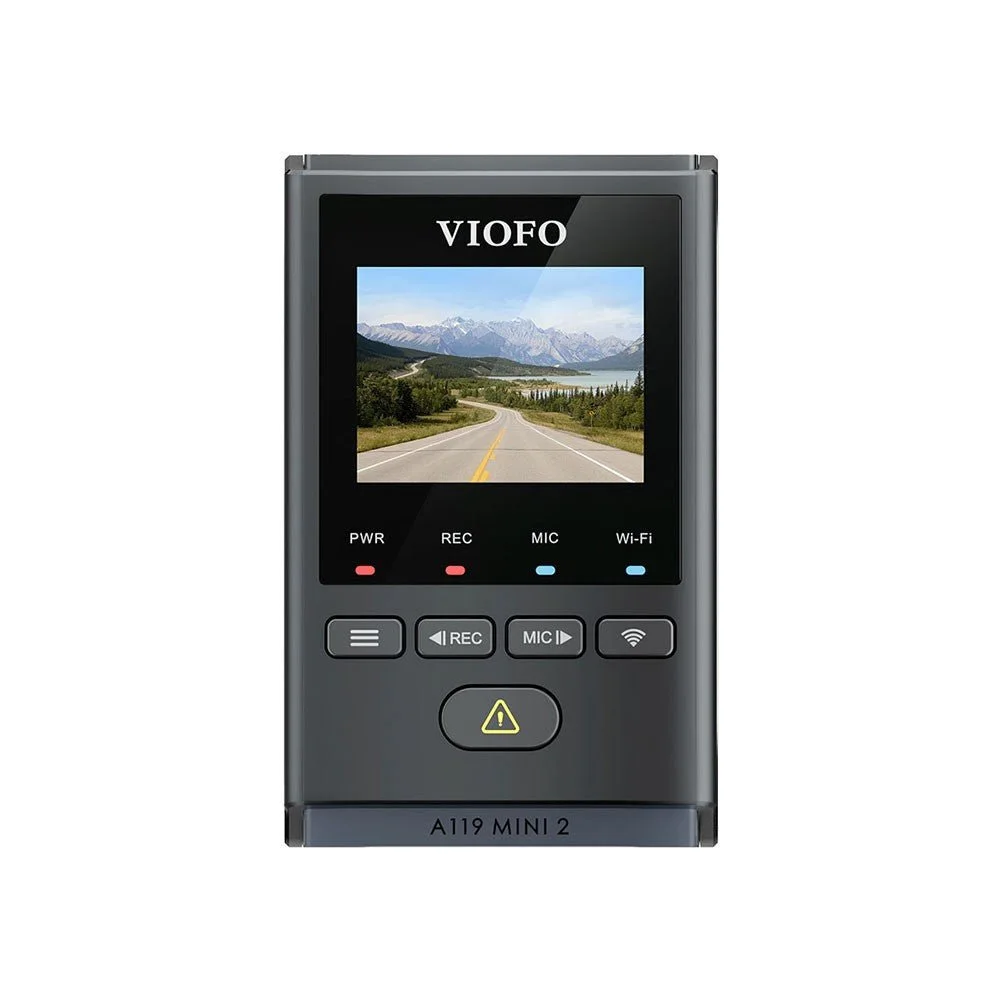
- VIOFO A229 Pro 2CH and A119 Mini 2: up to 512 GB.
- VIOFO A229 Pro 3CH: up to 512 GB, shared across three channels.
- BlackVue Elite 10-2CH: up to 1 TB.
Our scoring method gives weight to maximum card size for exactly this reason: more storage means a longer loop before old footage is overwritten.
The card you buy matters as much as its size. Loop recording rewrites the card continuously, and standard SD cards built for phones and cameras aren’t rated for that workload. Multiple reviewers stress this point. Shop Humor warns that non-endurance cards lead to premature failure, and Dashboard Camera Reviews notes VIOFO recommends their own branded cards or SanDisk Max Endurance. A DashCamTalk forum thread linked a recording failure to a card that hadn’t been formatted in over a year. Our guide to what SD card a dash cam needs covers endurance ratings and formatting schedules.
What clip length should you choose?
VIOFO offers 1, 2, 3, 5 and 10-minute clips on both the A229 Pro and the A119 Mini 2. The A119 Mini 2 also lists an Off option.
Clip length doesn’t change total history. A 512 GB card holds the same hours whether you split it into 1-minute or 10-minute files. What it changes is everything around the clips:
| Clip length | Pros | Cons |
|---|---|---|
| 1 minute | Fastest Wi-Fi transfer; least lost if a file corrupts; smallest locked file when G-sensor fires | More files to scroll through |
| 3 minutes | Fewer files; still quick to transfer | Corruption or a G-sensor lock costs more footage |
| 5-10 minutes | Fewest files; good for archiving long drives | Slow to transfer; a locked clip holds far more space than the event that triggered it |
That last column matters. When the G-sensor locks a clip, it locks the whole file. A 10-minute file locked for a pothole takes 10 minutes of protected space. A 1-minute file takes one.
Our pick: 1 minute for most drivers. Choose 3 minutes if scrolling through many files bothers you. Avoid longer clips unless you’re archiving a road trip and don’t need quick transfers.
How does parking mode affect your loop?
Parking mode shares the same card, so it draws from the same history budget. The A229 Pro offers three parking modes that use space very differently:
- Buffered motion detection saves only around events: 15 seconds before and 30 after. Very space-efficient.
- Time-lapse records continuously at a low frame rate, covering hours of parking in minutes of footage.
- Low-bitrate records continuously at reduced quality, using more space than time-lapse but keeping real-time motion.
The A229 Pro uses a supercapacitor rather than a battery, so any parking mode needs the optional HK4 hardwire kit. Our guide on how to set up dash cam parking mode walks through the wiring, and will a dash cam drain your car battery covers the power draw.
How to save a clip before the loop overwrites it
When something happens, you have three ways to keep the footage:
- Lock it immediately. Press the protect button, use voice control or hit the Bluetooth remote. This saves the clip being recorded right now.
- Download it over Wi-Fi. Every camera in this guide has 5 GHz Wi-Fi. Daily Automotive transferred a 300 MB clip in under a minute from the A229 Pro. Once it’s on your phone, the loop can’t touch it.
- Pull the card. Copy the file to a computer. Do this as soon as you can after a serious incident, before enough new driving fills the loop.
If you think you’ll need a clip but didn’t lock it, stop driving or stop recording. Every minute of new footage pushes the oldest clip closer to deletion.
Which dash cam handles loop recording best?
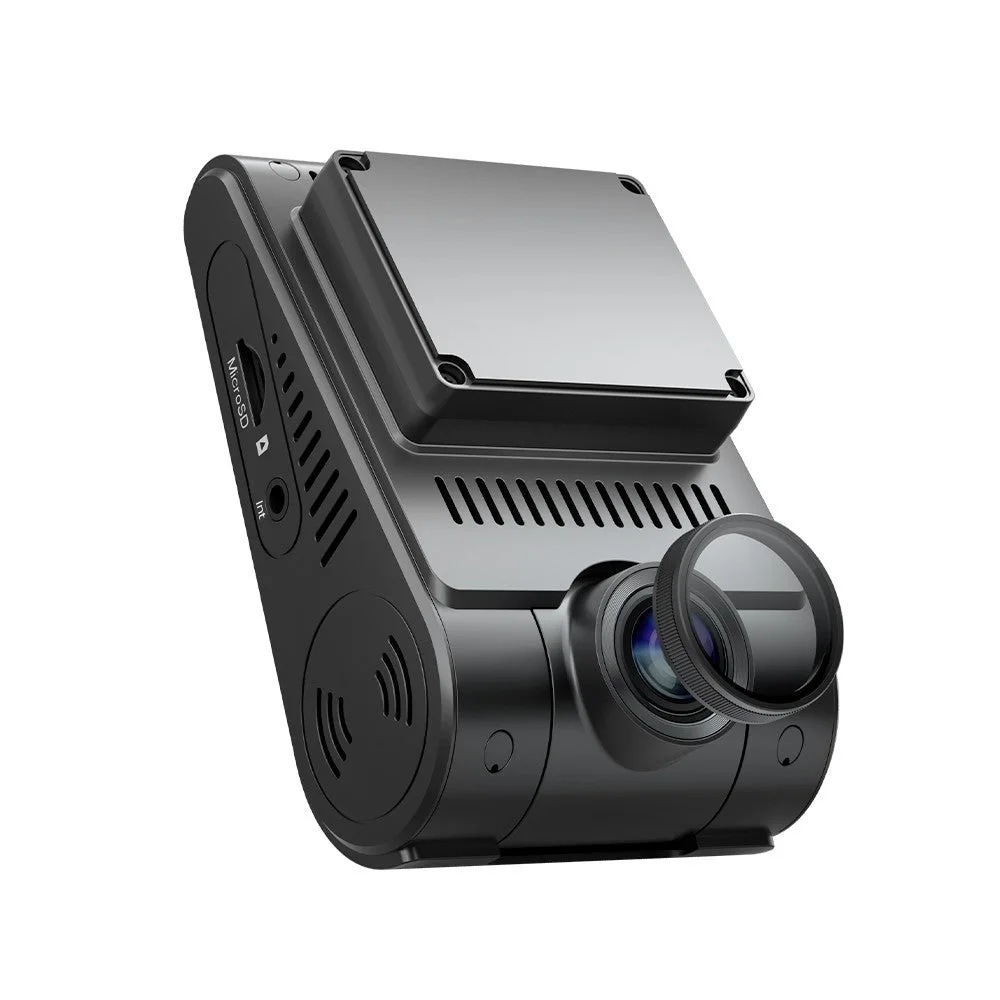
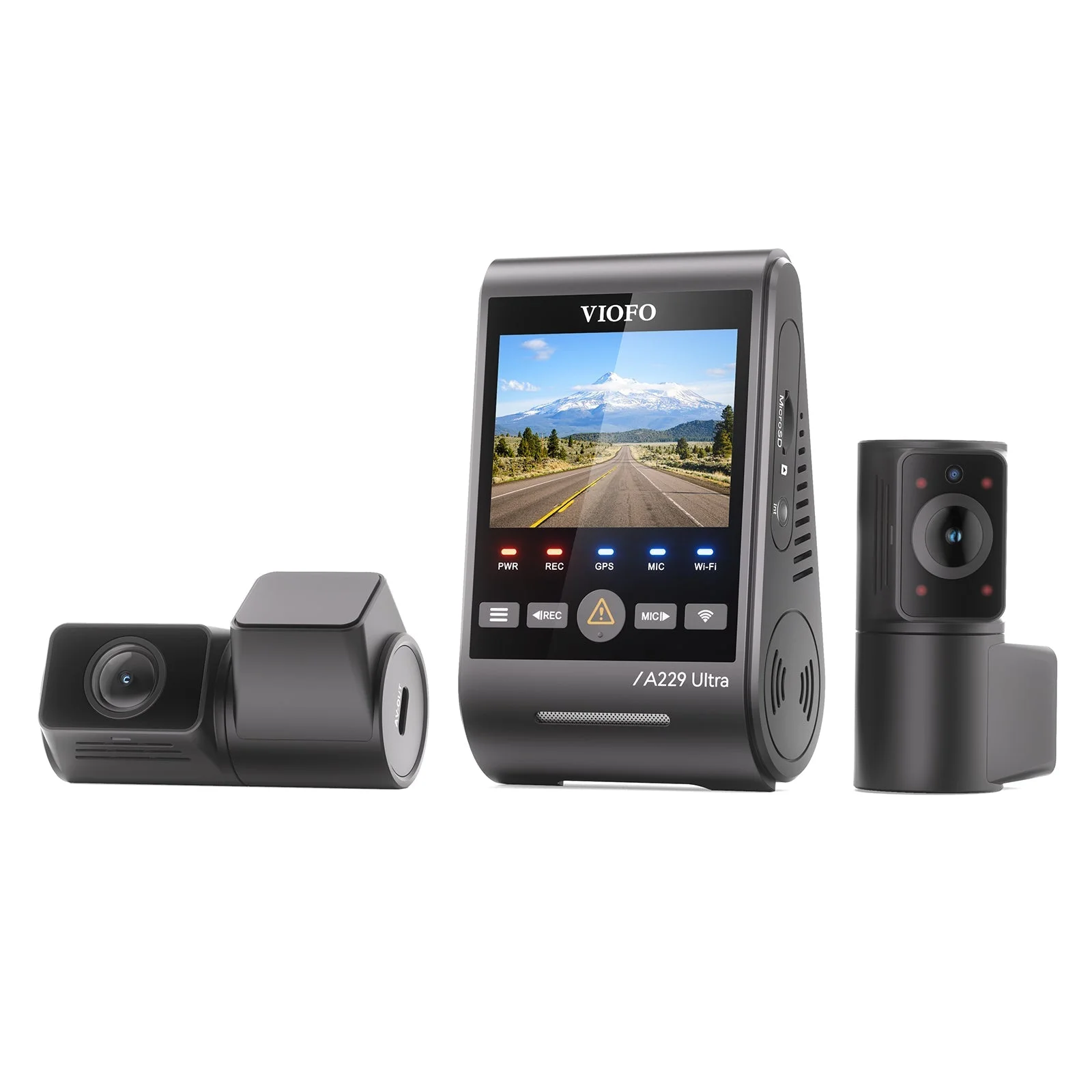
For a dual-channel setup, the A229 Pro 2CH is a strong example: 512 GB card support, clip lengths from 1 to 10 minutes, G-sensor locking, voice control and a Bluetooth remote for saving clips, plus 5 GHz Wi-Fi for fast offloads. Android Police’s review and Shop Humor’s two-year report both confirm reliable long-term operation with no overheating. Our A229 Pro breakdown covers the full spec sheet.
Well-rounded 2-channel loop recorder
VIOFO A229 Pro 2CH
- Front resolution
- 2,160 px
- Coverage (channels)
- 2
- STARVIS 2 sensor
- Yes
- Buffered parking mode
- Yes
To compare card limits and channel counts across every model we track, use the dash cam finder or start with our dash cam buying guide. The full dash cam rankings show every camera scored on the same rubric.
Frequently asked questions
Does loop recording delete important clips?
Not if they're protected. Clips locked by the G-sensor after an impact, by a manual button press or by a parking event stay out of the overwrite loop. Only unprotected driving footage is overwritten, oldest first.
How long does a dash cam keep footage before overwriting?
It depends on card size and combined bitrate. As a worked example, a dual-channel camera writing roughly 70 Mbps combined fills about 31.5 GB per hour, so a 512 GB card holds around 16 hours before the oldest clip is overwritten.
What loop recording clip length should I choose?
One minute suits most drivers. Short clips transfer faster over Wi-Fi and limit what you lose if a file corrupts on a power cut. VIOFO cameras like the A229 Pro and A119 Mini 2 offer 1, 2, 3, 5 and 10-minute options.
Can I turn loop recording off?
Some cameras allow it; VIOFO lists an Off option on the A119 Mini 2. But with loop recording off the camera stops when the card fills, which defeats the point of continuous protection.
Do I need to format my dash cam SD card?
Yes, periodically. Formatting in the camera keeps the file system clean and reduces the risk of silent corruption. Save any clips you need first, and follow the interval your camera's manual recommends.
Does loop recording work in parking mode?
Yes. Parking-mode footage writes to the same card and shares the same history budget. Buffered parking mode is the most space-efficient because it only saves a short clip around each detected event.
Related reading
Best ofDash Cams
Best Dash Cams: Every Major Model Ranked by Spec
Every dash cam we track, ranked on a published rubric, with picks for front and rear, 4K plate detail, night driving, parking mode and under $200.
GuideDash Cams
How to Choose a Dash Cam: 9 Specs That Actually Matter
How to choose a dash cam from the real spread of specs across every model we track: channels, 4K vs 1440p, STARVIS 2, supercapacitors, parking and GPS.
VersusDash Cams
BlackVue vs VIOFO: Which Dash Cam Brand Is Better?
BlackVue vs VIOFO compared model for model on our rubric: VIOFO wins on screens, 3-channel options and parking modes; BlackVue on cloud, LTE and 1TB cards.
GuideDash Cams
Are Dash Cams Worth It? What the Evidence Says
Are dash cams worth it? For most drivers, yes: footage settles fault, exposes staged crashes and IDs hit-and-runs. The downsides and how much to buy.