How to Set Up Dash Cam Parking Mode the Right Way
How to set up dash cam parking mode on VIOFO, Thinkware and BlackVue: pick buffered or time-lapse, set sensitivity, choose a voltage cutoff, then test it.
Disclosure: Dashlore earns a commission on purchases made through some links on this page, at no added cost to you. Scores come from the spec rubric, never from commission rates. Details
On this page
Key takeaways
- Parking mode needs constant power: a hardwire kit to a battery-fed fuse plus an ignition-switched (ACC) fuse, an OBD II cable, or a dedicated battery pack.
- Use buffered motion detection for parking lots and street parking; switch to time-lapse or impact-only modes when you need the camera to run longer.
- Set the low-voltage cutoff to 12.2V or higher if the car sits for days or in the cold; per Battery University, 12.24V is roughly 50% charge on a rested starter battery.
- VIOFO's HK4 offers 11.8V, 12.0V, 12.2V and 12.4V cutoffs; BlackVue's app lets you set anywhere from 11.8V to 12.5V.
- Always test with the doors open and wiring exposed before you tuck cables behind the trim.
To set up dash cam parking mode, wire the camera to constant power with a hardwire kit or battery pack. Then choose a parking mode in the app (buffered motion for most people), set motion and impact sensitivity, pick a low-voltage cutoff of about 12.2V, and test it before hiding the cables.
The steps below use three cams from our dash cam rankings: the VIOFO A229 Pro, the Thinkware U3000 Pro and the BlackVue Elite 10. All three are supercapacitor cams with no internal battery, so parking mode depends entirely on how you power them.
| Spec | 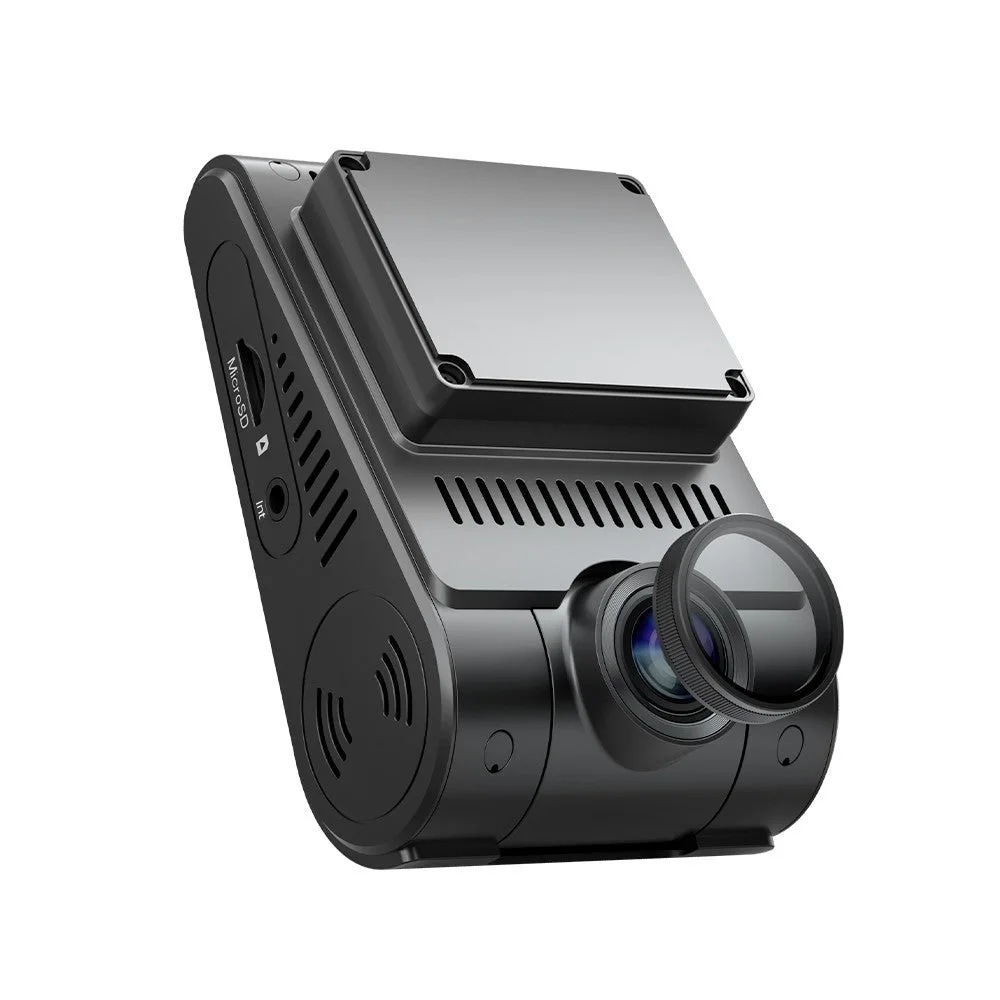 | 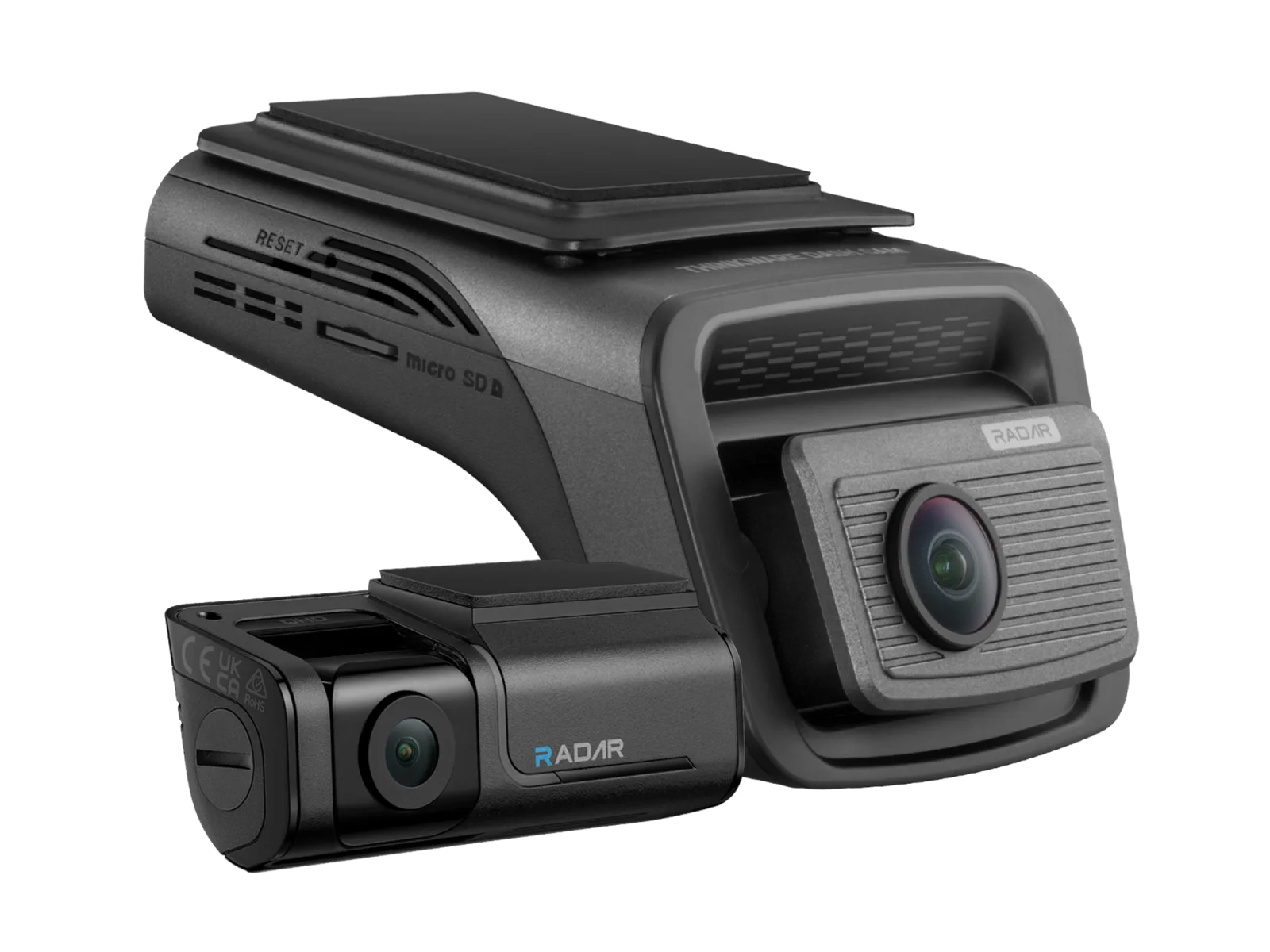 | 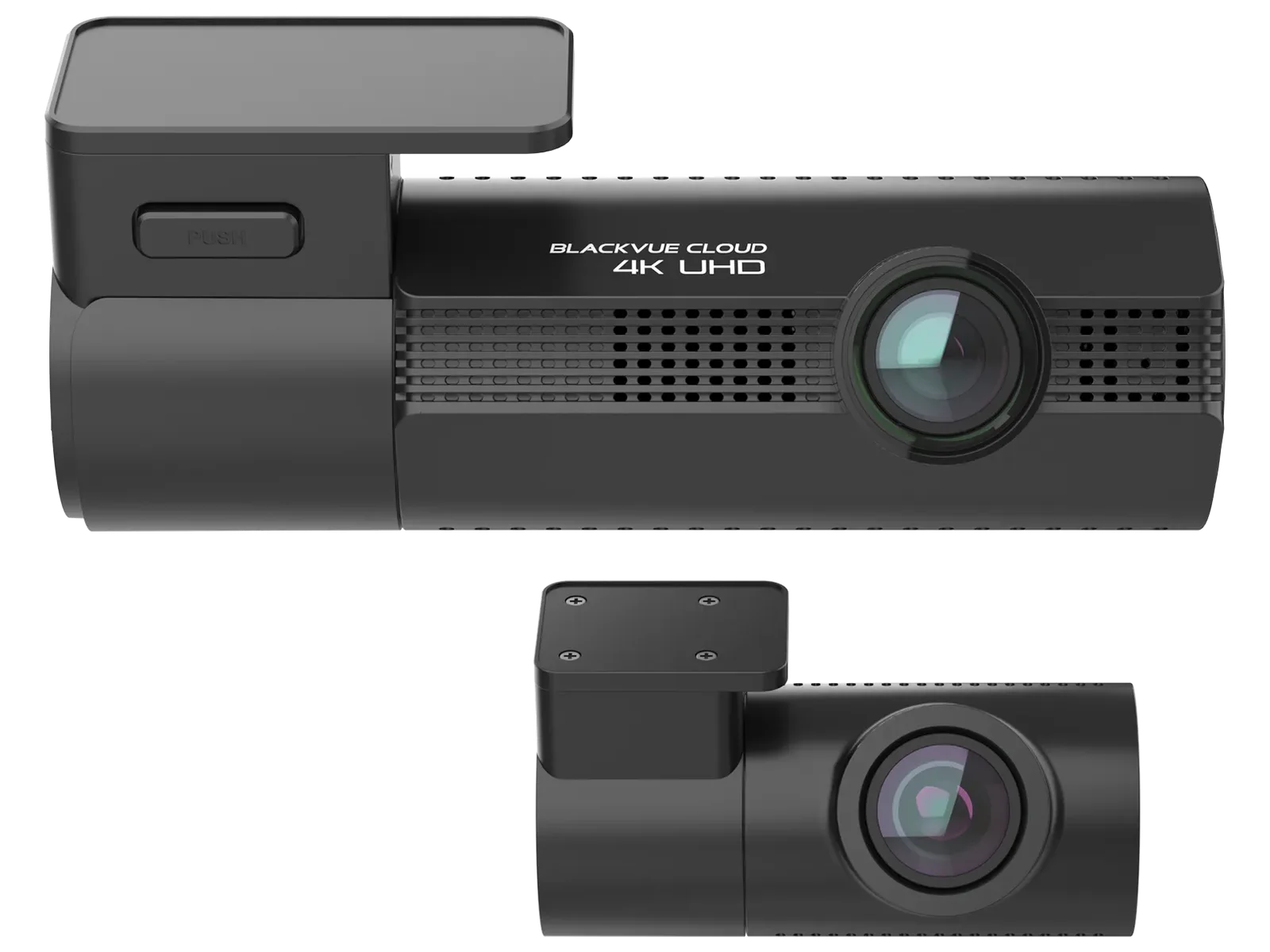 |
|---|---|---|---|
| Score | 7.6 | 7.3 | 7.7 |
| Front resolution | 2,160 px | 2,160 px | 2,160 px |
| Front frame rate | 30 fps | 30 fps | 30 fps |
| STARVIS 2 sensor | Yes | Yes | Yes |
| HDR | Yes | Yes | Yes |
| Coverage (channels) | 2 | 2 | 2 |
| Rear resolution | 1,440 px | 1,440 px | 2,160 px |
| Buffered parking mode | Yes | Yes | Yes |
| Low-bitrate parking | Yes | No | No |
| Heat tolerance (power cell) | supercapacitor | supercapacitor | supercapacitor |
| GPS | built-in | built-in | built-in |
| Wi-Fi transfer | 5GHz | 5GHz | 5GHz |
| Max storage | 512 GB | 512 GB | 1,024 GB |
| LTE / cloud | No | No | No |
| Front pixels per degree | 27.43 px/° | 26.12 px/° | 26.3 px/° |
| Rear STARVIS 2 sensor | Yes | Yes | Yes |
| Time-lapse parking | Yes | Yes | Yes |
| Max operating temperature | 65°C | 60°C | 65°C |
| Price | $349.99 at VIOFO, Nov 20 | $549.99 at Thinkware, Nov 20 | $603.99 at BlackVue, Nov 20 |
| Where to buy | Check price on Amazon | Check price on Amazon | Check price on Amazon |
What do you need before setting up parking mode?
- A constant-power source. A three-wire hardwire kit, an OBD II power cable or an external dash cam battery:
- VIOFO A229 Pro: the HK4 hardwire kit (optional, Type-C).
- Thinkware U3000 Pro: bundled with either a hardwiring cable or an OBD II cable; Thinkware sells the iVOLT battery separately.
- BlackVue Elite 10: a hardwire kit, an OBD II cable or the B-130A battery pack, all sold separately.
- The camera’s app on your phone: VIOFO, Thinkware Dash Cam Link or BlackVue.
- A circuit tester or multimeter to find a battery-fed fuse and an ignition-switched (ACC) fuse, plus add-a-fuse taps that match your fuse type.
- A high-endurance microSD card, formatted in the camera. Parking mode writes constantly and exposes weak cards fast; our guide to which SD card a dash cam needs covers sizes and endurance ratings.
If you haven’t wired a camera before, our guide to hardwiring a dash cam covers the fuse-box side. VIOFO’s HK4 manual is a good reference for any three-wire kit: red to an always-on fuse, yellow to an ACC fuse, black to a bare-metal ground point.
What is each parking mode called in the app?
Each brand names its modes differently, and the mode you choose decides what footage you’ll have after a parking-lot hit:
| Mode type | VIOFO A229 Pro | Thinkware U3000 Pro | BlackVue Elite 10 |
|---|---|---|---|
| Buffered motion | Auto Event Detection (15 s before, 30 s after) | Motion & Impact Detection (10 s before, 10 s after) | Motion Detection Mode (10 s pre-event) |
| Radar trigger | No | Dual Radar mode | No |
| Time-lapse | 1, 2, 3, 5 or 10 fps | 2 fps | 1 fps, played back 30x |
| Low bitrate | Yes | No | No |
| Impact only | No | Energy Saving | Power Saving Mode |
VIOFO’s buffer timings come from their parking mode guide. Select buffered motion for most parking, because the saved clip starts before the trigger and captures the other driver approaching. Time-lapse, low-bitrate, radar and impact-only modes trade detail or timing for longer coverage and lower power; our parking mode explainer defines each one and says which suits street parking, long stays and airport trips.
Two notes before you choose. Thinkware’s retailer notes that metallic window tint can reduce the U3000 Pro’s radar detection, so check your tint before relying on Dual Radar mode. And BlackVue’s manual says Power Saving Mode starts recording within 2 seconds of an impact with no pre-buffer, so treat it as a battery-saving fallback rather than your everyday mode.
What motion and G-sensor sensitivity should you use?
Sensitivity is a trade between missed events and a card full of junk clips. Start here and adjust after a week (our G-sensor guide explains what each impact level means):
- Parking impact (G-sensor): medium. VIOFO offers Off, Low, Middle and High. Medium catches a door ding or a bumper tap without triggering on every passing truck. Go higher only in a quiet private garage.
- Motion: low to medium in public lots, higher at home. A camera facing a busy street triggers all day on high, burning both card space and battery.
- Use exclusion zones where offered. BlackVue’s Motion Detection Mode lets you exclude areas of the frame, so a sidewalk or a road in the background stops triggering clips.
- Driving G-sensor: low. It’s a separate setting on most cams. Set too high, potholes lock clips as events and fill the protected folder.
On BlackVue, these live under More → Camera Settings → Recording Mode for parking options and Event Triggers for Driving Impact and Parking Impact, per BlackVue’s settings manual.
How do you set the voltage cutoff and timer?
The cutoff protects your starter battery. When voltage falls to your setting, the kit or camera cuts power. (For the full picture on drain, see will a dash cam drain your car battery.) Here’s what a rested 12V starter battery’s voltage means, per Battery University:
| Open-circuit voltage | Approximate state of charge |
|---|---|
| 12.65V | 100% |
| 12.45V | 75% |
| 12.24V | 50% |
| 12.06V | 25% |
| 11.89V | 0% |
Those readings assume 26°C (78°F) and a full day of rest, so treat them as a guide. Cold batteries deliver less cranking power, which is why winter calls for a higher cutoff.
Now set it on your camera:
- VIOFO A229 Pro with HK4: choose 11.8V, 12.0V, 12.2V or 12.4V (23.6V to 24.8V on 24V trucks). VIOFO says to set the parking options before installation, and the parking recording timer is set in the VIOFO app.
- BlackVue Elite 10: in the app’s battery protection settings, set Low Voltage Cut-off anywhere from 11.8V to 12.5V on a 12V car (23.6V to 25.0V on 24V). Then set a Timer Cut-off, such as 6, 12 or 24 hours. Both need the hardwiring cable.
- Thinkware U3000 Pro: Thinkware doesn’t publish its cutoff values on the U3000 Pro product page. Set the low-voltage option in the Dash Cam Link app using the same targets.
Our recommendation: 12.2V for a daily driver, 12.4V for a car that sits for days, in sub-freezing weather, or with an older battery. Only use 11.8V or 12.0V with a newer battery and short parking stretches. A timer of 12 to 24 hours catches most overnight incidents without risking a long weekend away. EVs and hybrids with a small 12V auxiliary battery should use 12.4V or a dedicated dash cam battery pack to avoid stressing it.
How do you test that parking mode works?
Test before the trim goes back on, as VIOFO’s manual recommends:
- With wiring connected but exposed, start the car. The camera should boot into normal recording.
- Turn the engine off. Within a short delay, the camera should announce or show that it’s entered parking mode. That’s the ACC wire doing its job.
- Close the doors, wait a minute, then walk in front of the camera and tap the windshield or bumper firmly.
- Open the app over Wi-Fi and confirm a parking event clip was saved and starts before the moment you appeared.
- Start the car again and confirm it returns to normal recording.
- Once it all works, tuck the cables. Our rear camera installation guide covers cable routing for the rear channel.
Why does parking mode keep shutting off?
Work through these in order:
- The cutoff is too high for your battery. If a 12.4V cutoff trips within an hour, the battery may be weak or simply not fully charged after short trips. Try 12.2V, and have the battery tested.
- The timer expired. Check the timer setting in the app.
- Heat protection kicked in. The U3000 Pro’s Smart Parking Mode drops to impact-only recording when the cabin overheats; all three cams are rated to 60-65°C maximum.
- Cold limits. Thinkware’s retailer lists a -10°C (14°F) minimum operating temperature for the U3000 Pro; VIOFO rates the HK4 down to -30°C. See our cold-weather dash cam picks for cams rated to the widest temperature range.
- Wiring. If the camera dies the instant the engine stops, the red constant wire is on a switched fuse. If it never leaves parking mode, the yellow ACC wire is on an always-on fuse.
- The card. Corrupt or slow cards cause reboots. Reformat in the camera, or replace the card.
Picking a camera with parking mode in mind? See our best dash cam with parking mode picks. Our dash cam finder filters by buffered parking, and our scoring method explains why we weight it.
Frequently asked questions
Do I need a hardwire kit for dash cam parking mode?
For supercapacitor cams like the VIOFO A229 Pro, Thinkware U3000 Pro and BlackVue Elite 10, yes, or an OBD II cable or battery pack. A 12V socket that switches off with the ignition can't power the camera once the car is off.
What voltage cutoff should I use for parking mode?
Start at 12.2V on a 12V car. Use 12.4V if the car sits for several days or lives somewhere cold, and drop to 12.0V only with a healthy battery and daily driving.
Which parking mode uses the least power?
Impact-only modes, such as BlackVue's Power Saving Mode and Thinkware's Energy Saving mode, draw the least because the camera sleeps until a bump wakes it. They don't capture the seconds before an impact.
Why does my dash cam keep saving parking clips with nothing in them?
Motion sensitivity is too high for the spot, or the camera sees a busy road or swaying trees. Lower motion sensitivity, use exclusion zones where offered, or switch to impact-only mode on a busy street.
Will parking mode drain my car battery?
Not if the low-voltage cutoff is set correctly. The hardwire kit or camera cuts power when the battery falls to your chosen voltage, leaving charge to start the engine.
Related reading
How-toDash Cams
How to Hardwire a Dash Cam: Fuse Tap Install Step by Step
How to hardwire a dash cam with an add-a-fuse tap: find constant and ignition fuses, ground the kit, set a low-voltage cutoff and fix parking mode issues.
Best ofDash Cams
Best Dash Cams: Every Major Model Ranked by Spec
Every dash cam we track, ranked on a published rubric, with picks for front and rear, 4K plate detail, night driving, parking mode and under $200.
GuideDash Cams
Dash Cam Parking Mode Explained: Buffered vs Time-Lapse
Dash cam parking mode explained: buffered, time-lapse, low-bitrate and impact-only recording compared, with buffer lengths and which cams support each.
VersusDash Cams
Thinkware U3000 vs U3000 Pro: What Changed?
Thinkware U3000 vs U3000 Pro: the Pro adds HDR, a STARVIS 2 rear sensor and 512 GB card support, lifting its score from 6.5 to 7.3. See who should upgrade.